How-To Guide: Enable Cash Rounding
Last updated January 15, 2026
Cash rounding allows your store to automatically round cash transactions to the nearest configured amount when exact change is not available. This setting applies only to cash payments and does not affect credit cards, gift cards, or other payment methods.
Step-by-Step Instructions
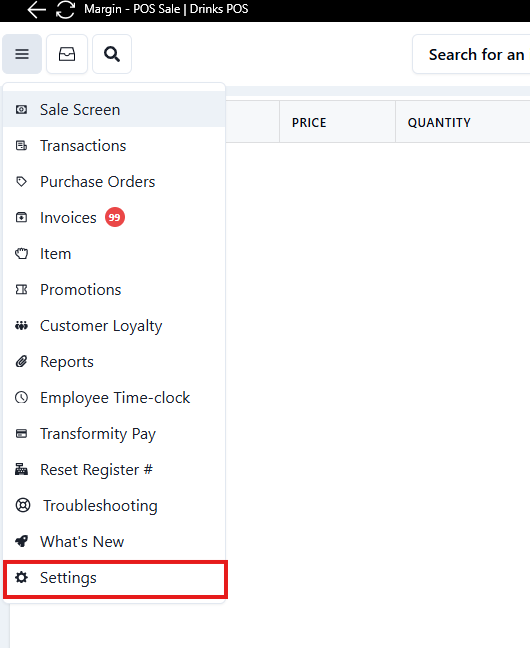
Step 1: Open Settings
- From the POS application, click the three-line menu / options
- Select Settings
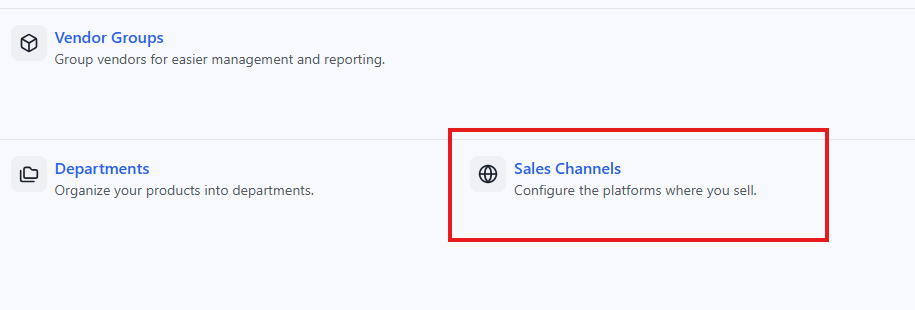
Step 2: Go to Sales Channels
- Click Sales Channels
Step 3: Edit the In-Store Sales Channel
- Locate the In Store sales channel
- Click Edit

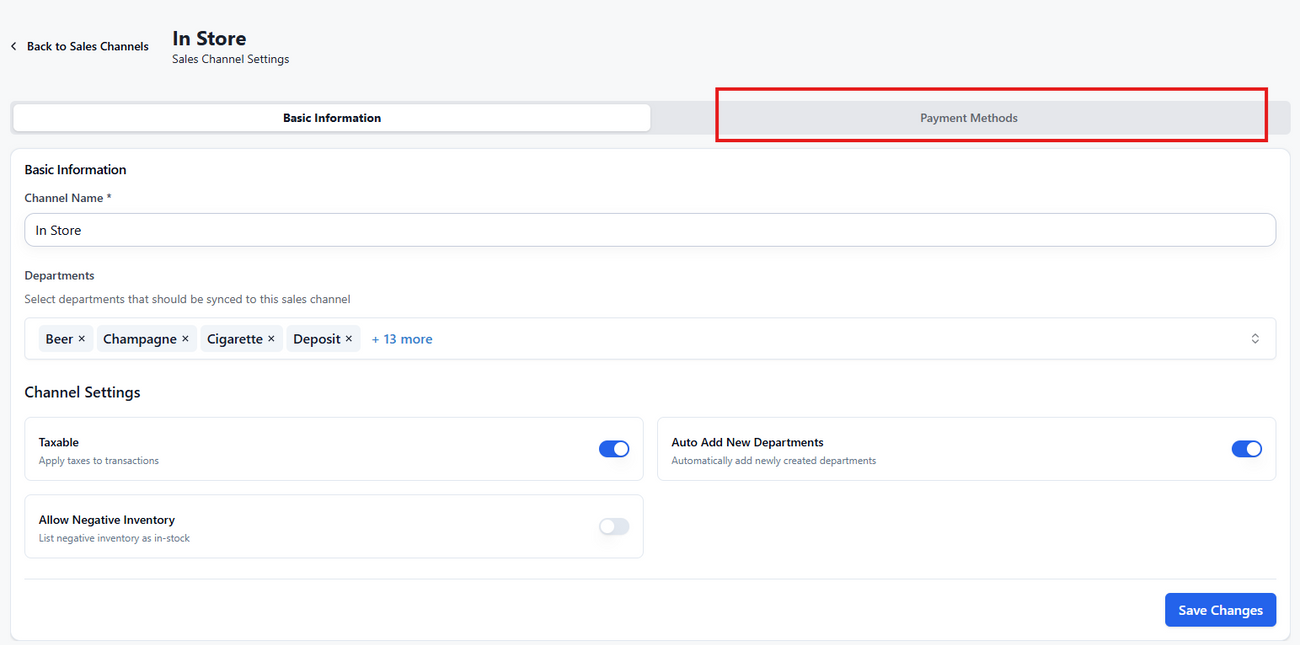
Step 4: Open Payment Methods
- Inside the In Store sales channel
- Click the Payment Methods tab
Step 5: Configure Cash Rounding
In the Cash row:
Rounding Base
Select the rounding increment:
- 0.05 → Rounds to the nearest 5 cents
- 0.10 → Rounds to the nearest 10 cents
Rounding Method
Choose how rounding is applied:
- Rounding Midpoint Down
- Rounding Midpoint Up
- Always Round Down
- Always Round Up
💡 Example: If Rounding Base = 0.05 and Method = Always Round Up $1.01 → $1.05 $1.06 → $1.10

The setting takes effect immediately
Was this article helpful?