Loyalty Configurations
Last updated December 9, 2025
Part 1: How to Access the Loyalty Menu
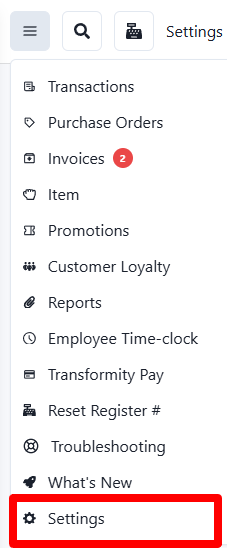
- Go to Settings: From your main dashboard, navigate to the Settings page.
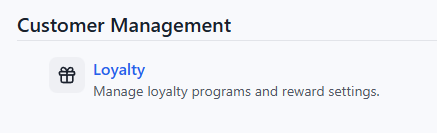
- Find Customer Management: Scroll down until you see the section labeled Customer Management.
- Select Loyalty: Click on the Loyalty option (indicated by the gift icon). This will take you to the main configuration screen.
Part 2: Explaining Loyalty Configurations
Once you are on the Customer Loyalty settings page, you will see several options to customize your program. Here is what each setting does:
- SMS Messaging
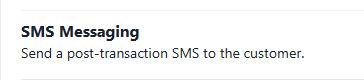
- What it does: This toggle allows the system to automatically send a text message to the customer after a transaction.
- When to use it: Turn this ON if you want customers to receive instant updates about their points balance or purchase confirmation via text.
- Points Rounding Mode
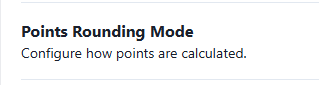
- What it does: This determines how the system handles decimal points when calculating rewards.
- Options:
- Round Up: $1.10 becomes 2 points. (Generous to the customer).
- Round Down: $1.90 becomes 1 point. (Conservative for the business).
- Recommendation: "Round Up" is usually preferred to keep customers happy.
- Create House Account Across All Stores

- What it does: If you have multiple store locations, this setting ensures a customer's account (and their points) works at every location, not just the one they signed up at.
- When to use it: Turn this ON if you have more than one shop and want a unified loyalty program.
- Lookback Period

- What it does: This defines the timeframe the system uses to calculate a customer's current rank or active points.
- Options: You can select specific windows like 30 Days, 180 Days, 365 Days, or All Time.
- Example: If you set this to 365 Days, a customer's points or VIP status might only be based on their activity in the last year, rather than their entire history. Setting it to All Time means points never "expire" from the calculation.
Was this article helpful?