Using Your Phone as a Mobile Hotspot
Last updated December 18, 2025
If your primary internet connection is unavailable, you can use your smartphone as a temporary hotspot to provide internet access to another device.
This guide explains only how to turn on a hotspot on your phone.
When Should You Use This?
Use your phone as a hotspot if:
- Your main internet connection is down
- You have a smartphone with cellular data available
- You need temporary internet access
Step 1: Turn On Hotspot on Your Phone
📱 iPhone (iOS)
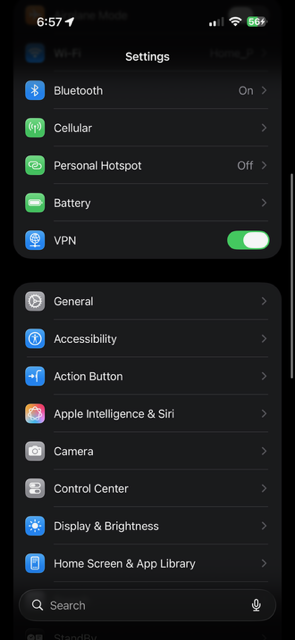
- Open Settings
- Tap Personal Hotspot
- Turn ON Allow Others to Join
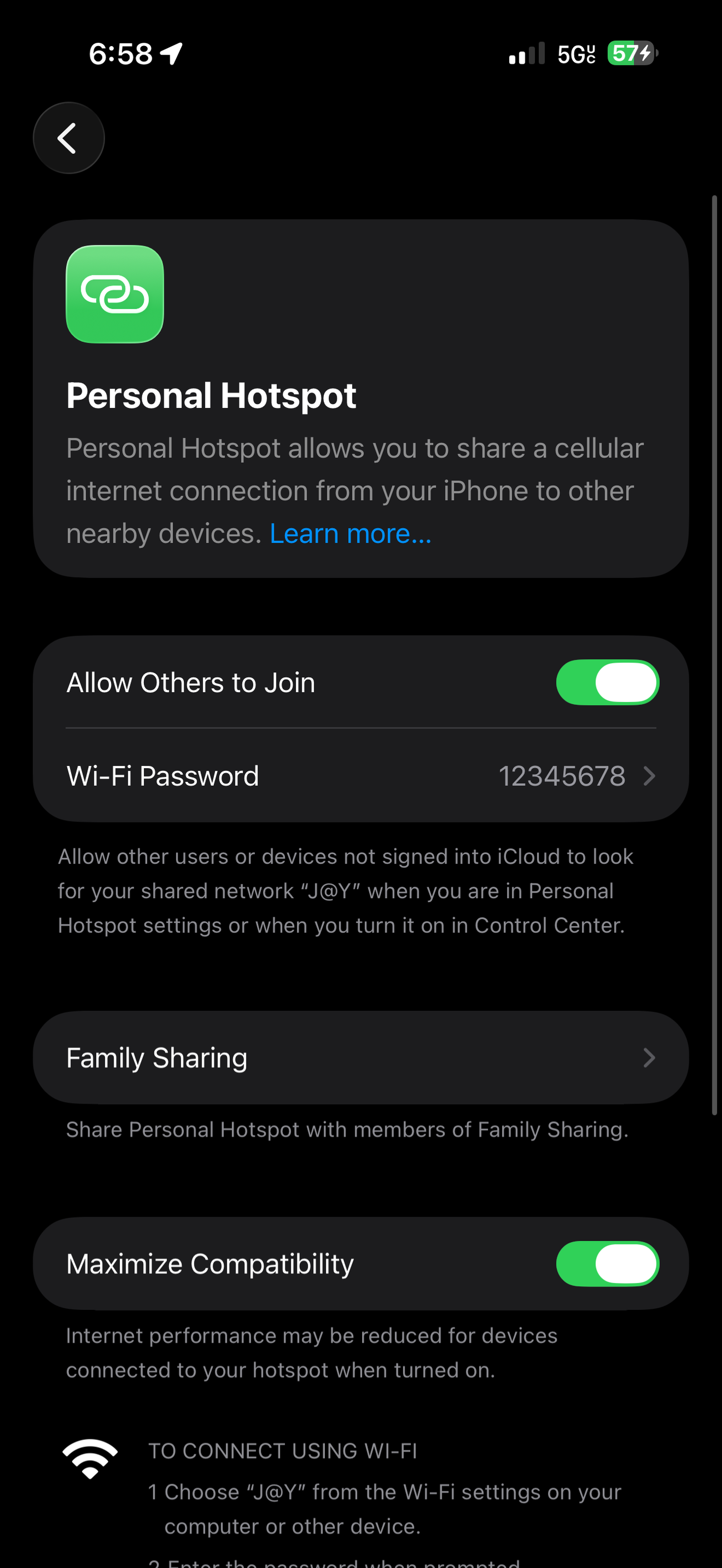
- Note the Wi-Fi Name and Password
- Keep your phone plugged in and charging
✅ Tip: Disable Low Power Mode to prevent the hotspot from turning off automatically.
📱 Android
- Open Settings
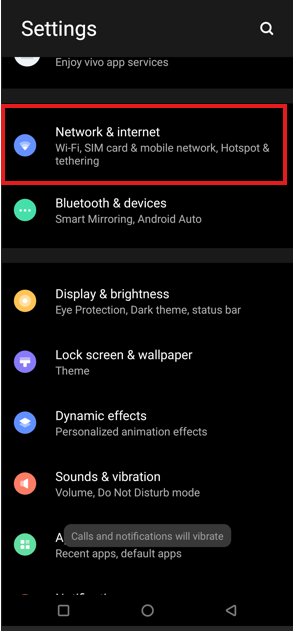
- Tap Network & Internet (or Connections, depending on your device)
- Select Hotspot & Tethering
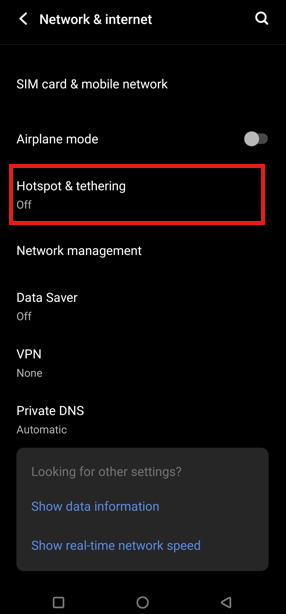
- Turn ON Wi-Fi Hotspot
- Note the Hotspot Name (SSID) and Password
- Keep your phone plugged in and charging
✅ Tip: Some Android devices automatically turn off hotspots when idle. Keep the screen active if needed.
Helpful Tips
- Place your phone where it has a strong cellular signal
- Avoid running battery-heavy apps while the hotspot is on
- Monitor your mobile data usage if your plan has limits
Connecting Your PC to a Mobile Hotspot
Once your phone’s hotspot is turned on, follow the steps below to connect your Windows computer.
Step 1: Open Network Settings
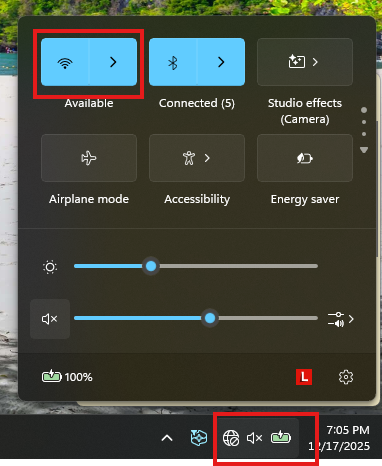
- On your Windows PC, locate the network icon in the bottom-right corner of the taskbar
- This may look like a Wi-Fi symbol or a globe icon
- Click the network icon to open Quick Settings
- Click the Wi-Fi tile or the arrow ( > ) next to it to view available networks.
Step 2: Select the Mobile Hotspot
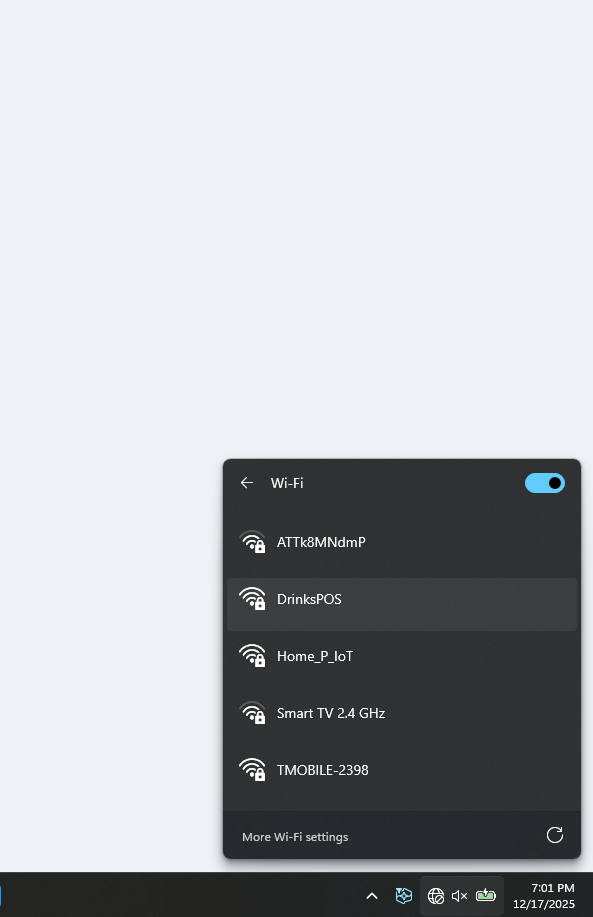
- From the list of available Wi-Fi networks, locate your phone’s hotspot name
- Example: DrinksPOS (this name comes from your phone)
- Click the hotspot name
- Click Connect
Step 3: Enter the Hotspot Password
- When prompted, enter the Wi-Fi password shown on your phone
- Click Next
- Wait for Windows to show Connected
✅ Once connected, your PC is now using your phone’s mobile hotspot.
Enable Standalone / Backup mode on Stripe Credit card terminal:
https://help.transformity.tech/articles/179564-credit-card-machine-backup?SEARCHED_EVENT=standalone
Common Questions
Q: Will using a hotspot drain my battery? Yes. Always keep your phone plugged in while the hotspot is enabled. Q: Can multiple devices connect to my hotspot? Yes, but performance may decrease with multiple connections. Q: Is hotspot usage secure? Use a strong password and turn off the hotspot when you are finished.
If you have questions or need help, please contact support.